Creating a Page with Live Offers via Labels
Sometimes it makes sense to create a custom page or post with offers. Some good examples of these are our free gift cards and product testing landing pages.
These talk about how product testing works for example, what it is, tips and tricks but also include offers on them so they live update with the latest product testing offers. These are often evergreen pieces of content that provide value and include offers that we might add to the main navigation, but the same approach works just as well for more specific or timely content, for example we did one for the World Cup recently which included offers but was tied to that specific year.
Getting Started
You can create a new Page or Post as you normally would in WordPress for this by going to Pages -> Add Page or Posts -> Add Post.
Create the content around the topic you are working on, there are other KB articles that go over creating good content and ensuring it's optimised for SEO. Ensure this is well written and a good length.
Ensure you fill in relevant SEO meta fields as well.
When working on your content you can leave a space or make a note of where you will insert offers.
Inserting Offers
Creating a Label
To insert offers into the page or post that live update you can create a new label if one does not already exist for your specific topic. Labels don't show on the frontend of the site unless you specifically include them somewhere like you are about to do.
To view existing labels just go to Offers -> Labels in the WordPress admin panel.
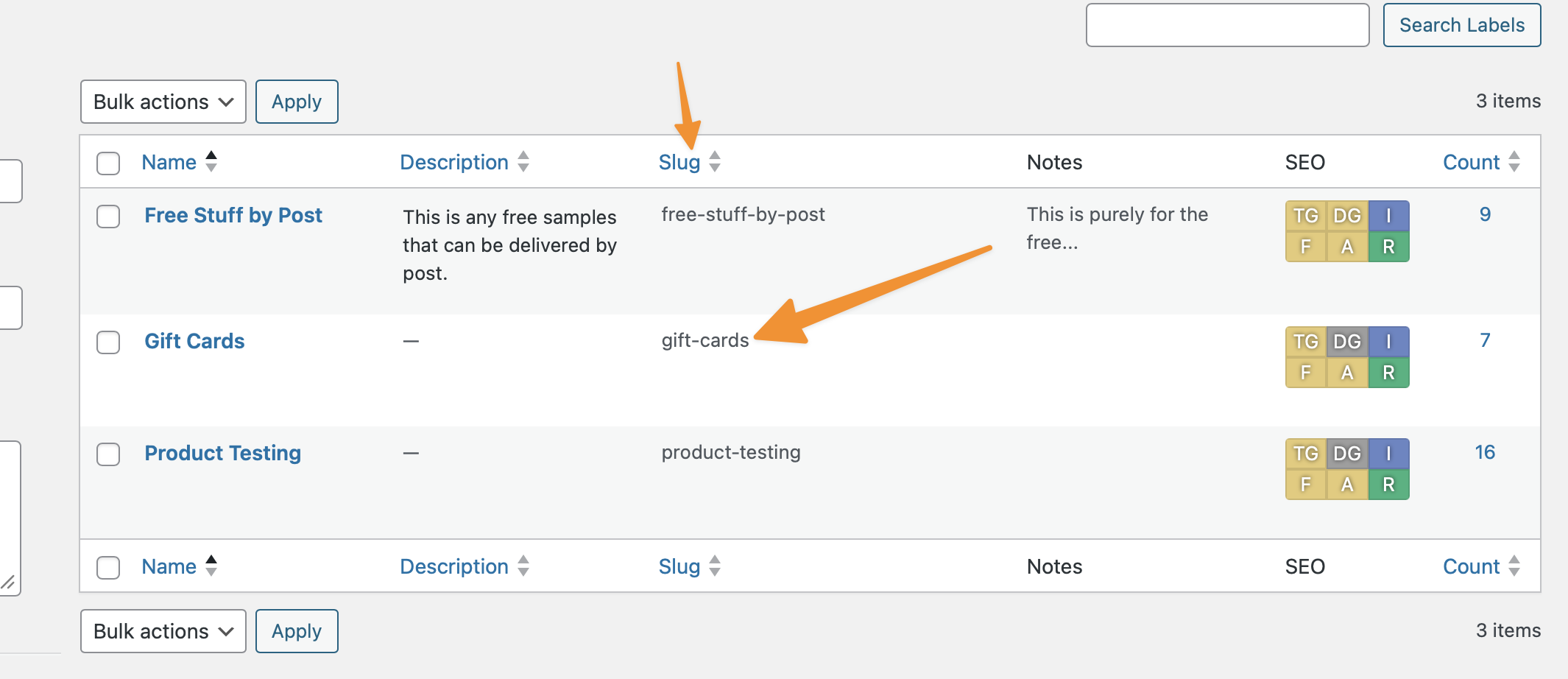
Here you can see a list of Labels and create a new label.
As this does not show on the front end as a specific page or anything, what you write and setup here is not too important. There is no need to optimise for SEO here its more for internal use.
Assigning Offers
Once you have created your label you should then go through existing offers and look for offers that apply to your label. You can simply edit any of the offers and look for the Labels box on the edit screen to tick to assign labels to it, just like you could categories.
Inserting Offers by Label into a Page or Post
Once you have created your label and assigned some offers to it (it's important you assign some offers first otherwise it won't show up correctly), you can then insert the dynamic label view into the page or post content.
You do this by using the following shortcode and inserting the slug of the value you created:
[wpv-view name="list-of-offers-by-label" label="VALUE"]
You must replace
VALUEwith the Slug of the label you just created.
Simply copy and paste the above once modified into the content and then preview your page or post and you will see the offers inserted into the content and these will stay up to date as offers come and go into this label.